
By Wayne T. Dowdy
Quick bit of background: I never used a cell phone until August 28, 2018, the day I walked out of federal prison — and these days I run websites, video channels, and pages all over social media. (How a man who had never touched a cell phone built all of that is a story of its own — and it’s coming next. Watch for it.) All of that content runs through one phone.
And this morning, that phone told me it is nearly out of room: 234 GB used out of 256 GB.
The biggest space-eater on it? Messages — over 31 GB.
I’m not embarrassed by that number. Those gigabytes are eight years of family photos, videos, and group chats — pieces of the life I missed for thirty years, arriving one text at a time. Of course it’s full.
But a full phone is a real problem, especially for somebody coming home. Your phone is your lifeline: it’s how an employer reaches you, how you get the app the job requires, how you photograph documents, how family finds you. If it can’t update, can’t install, can’t receive — that’s not an inconvenience, that’s a door closing. So here’s what I learned about where the space goes, and how to get it back. It applies to anybody’s phone, but I’m writing it for the ones who started from zero, like me.
Where the space went
From my phone’s own storage screens:
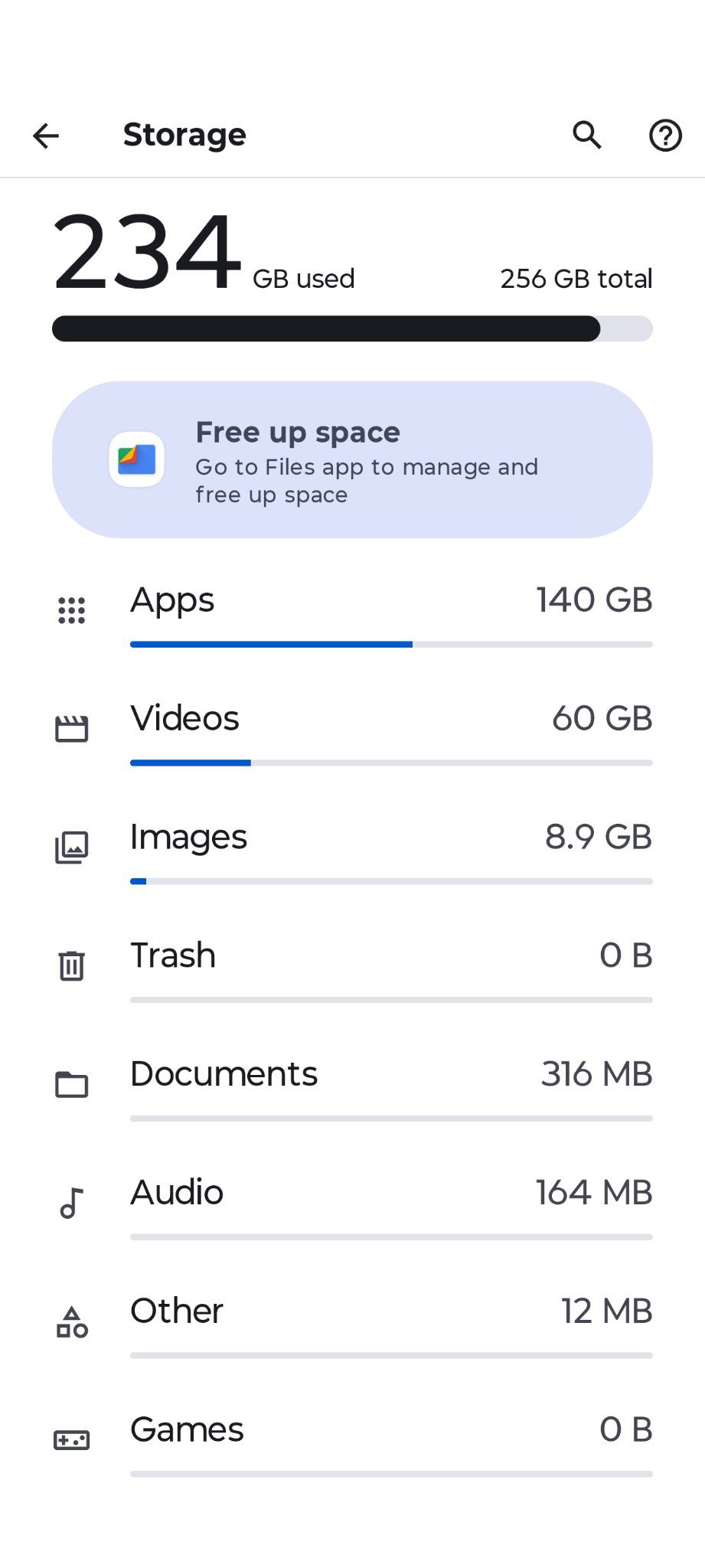
- Apps: 140 GB — more than everything else combined
- Videos: 60 GB
- Images: 8.9 GB
- Documents, audio, and everything else: under 1 GB combined
The hungriest apps:
- Messages: over 31 GB
- YouTube: 5.14 GB
- TikTok: 5.03 GB
- Gallery: 3.30 GB
- Instagram: 2.66 GB
- Facebook: 1.40 GB
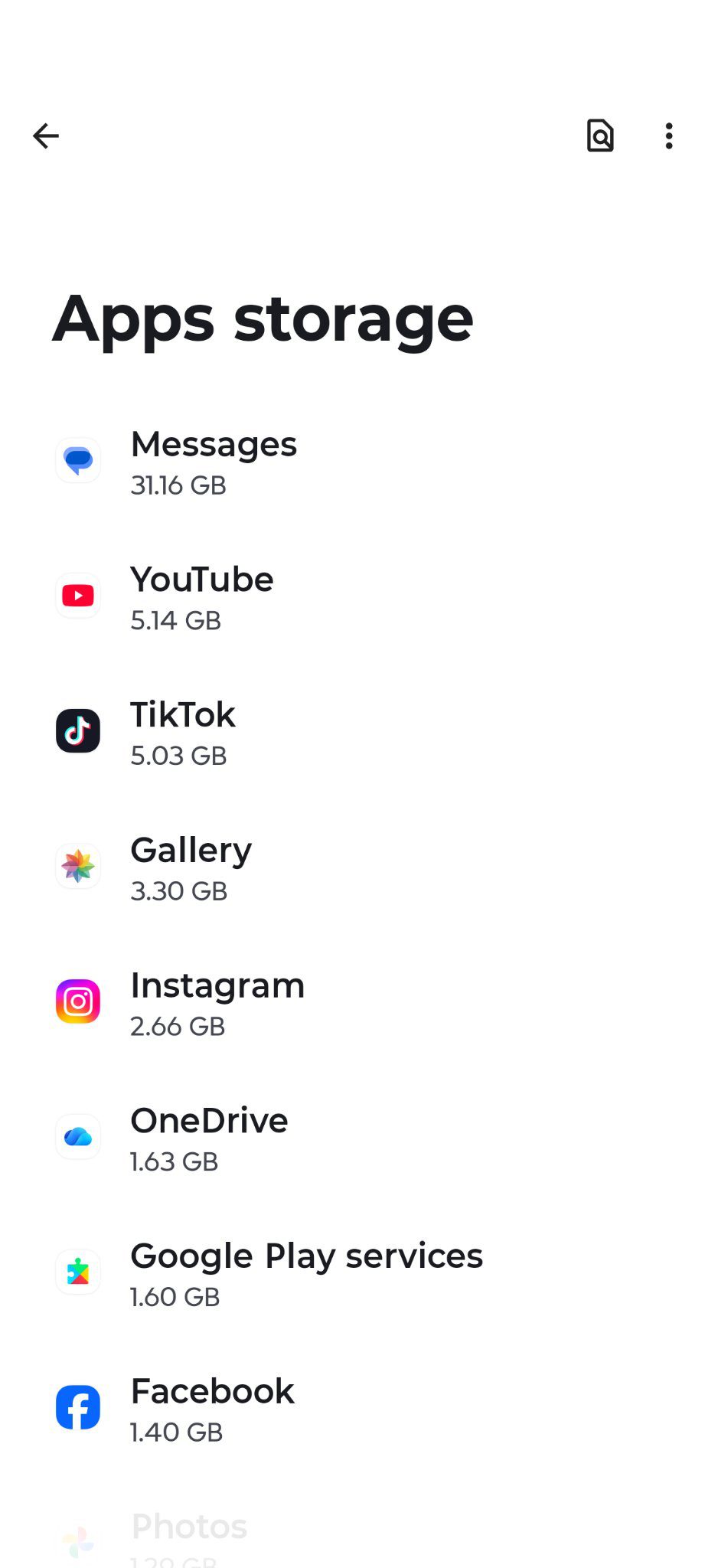
My text messages alone take up more room than YouTube, TikTok, Instagram, and Facebook combined — more than twice as much.
The lesson hiding in the Messages screen
The detail screen for Messages showed:
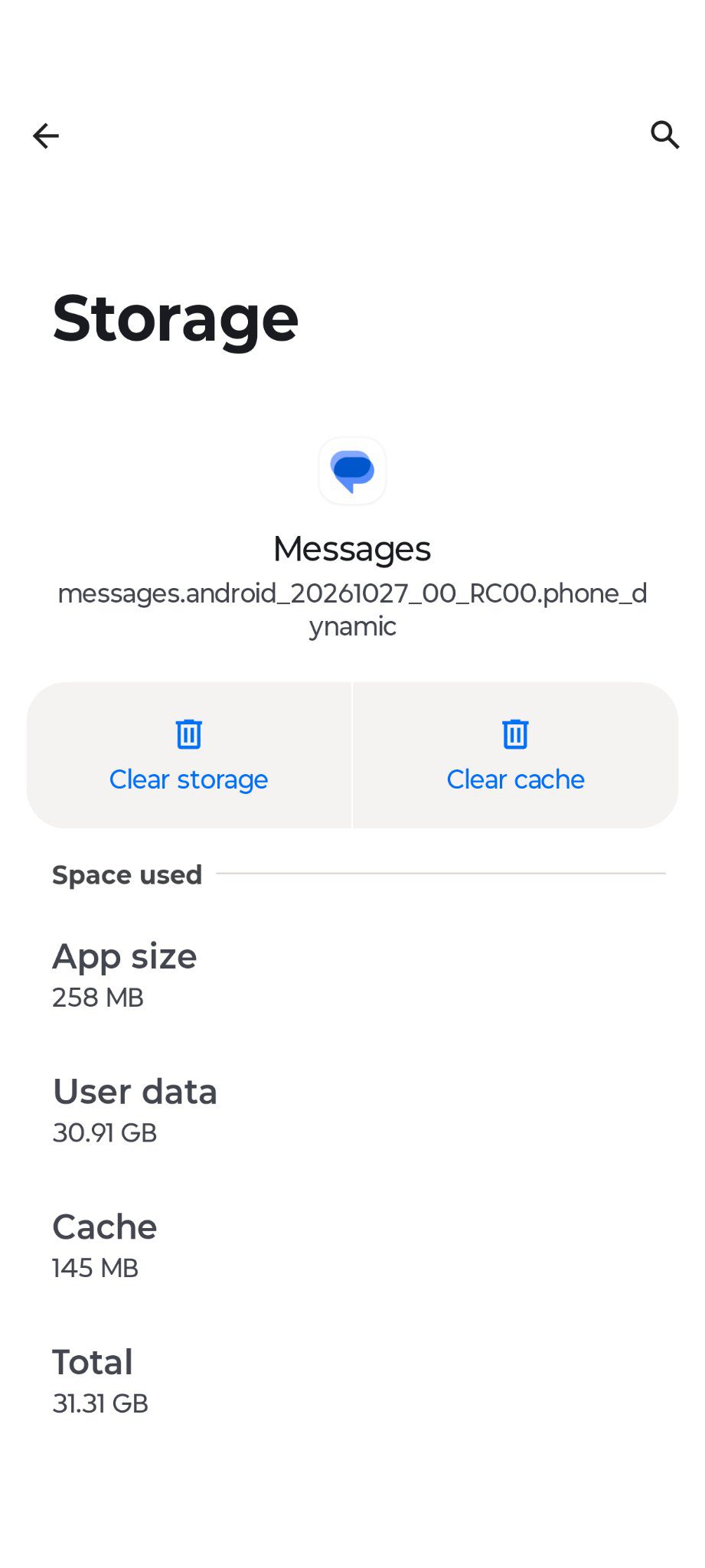
- App size: 258 MB
- User data: 30.91 GB
- Cache: 145 MB
That split is the whole lesson. The cache — the part that’s safe and easy to clear — is only 145 MB. The other 30-plus GB is the content itself: every photo and video sitting inside my conversation threads. Clearing cache won’t fix a full phone. The space is in the threads.
How to get the space back
In order of payoff:
- Messages (the big one). Back up the photos and videos you want to keep — Google Photos, Microsoft One Drive, or the iCloud works, depending on your phone and available services. Then delete the old, media-heavy conversations, especially group chats full of video. Slow the refill down in Messages settings by turning off auto-download for MMS, so big attachments only download when you tap them.
- Your own videos (60 GB on mine). Move the keepers to a computer, flash drive or cloud storage, then delete them from the phone. Check for duplicates and old screen recordings, and empty the Gallery recycle bin, where deleted items can sit for 30 days.
- YouTube. Delete downloaded videos you’ve watched, turn off Smart Downloads, and clear the app’s cache (App info → Storage → Clear cache).
- TikTok. In the app: Profile → Settings → “Free up space” → clear cache. One warning: TikTok drafts are stored on your phone, not in the cloud. Save or post drafts you care about before clearing anything.
- Instagram and Facebook. Clear cache in App info → Storage. Safe — the apps rebuild it as you scroll.
- Let the phone help. The Files app has a “Free up space” tool that finds large files, duplicates, and apps you haven’t opened in months.
On an iPhone, same problem, different buttons
Everything above came from my Android, but iPhones fill up the same way — and Messages is usually the hog there, too. The same moves, translated:
- See the breakdown: Settings → General → iPhone Storage. Apple lists its own cleanup recommendations right at the top.
- Messages: On that same iPhone Storage screen, tap Messages and use “Review Large Attachments” to find and delete the big videos and photos hiding in your threads. Then, in Messages settings, change “Keep Messages” from Forever to 1 Year or 30 Days, so old conversations clean themselves out from now on. And empty the “Recently Deleted” folder in Messages — deleted threads can sit there up to 30 days before the space actually comes back.
- Your photos and videos: Turn on iCloud Photos with “Optimize iPhone Storage” (in Photos settings) — the full-size originals live in iCloud and small versions stay on the phone. Whatever you delete, empty the “Recently Deleted” album in Photos, or it keeps counting against you for 30 days.
- Apps you rarely use: Turn on “Offload Unused Apps” in iPhone Storage. It removes the app but keeps its data, so if you reinstall, everything is right where you left it.
- App caches: iPhones don’t offer a “clear cache” button. TikTok’s in-app cleanup and YouTube’s download controls work the same as above. For Instagram and Facebook, the cache reset is deleting the app and reinstalling it. A restart also trims the “System Data” pile that quietly grows over time.
One warning before you start tapping
Clear cache and Clear storage are not the same button. Clear cache is safe. Clear storage wipes an app’s data and settings — on a messaging app it can cost you your conversation history. On Messages especially: don’t touch Clear storage. Take the space back from inside the app, thread by thread.
On an iPhone, the pair to watch is “Offload App,” which keeps your data, versus “Delete App,” which takes the app and its data with it.
Your turn
I freed up room just by knowing where to look. Now I’m curious: what’s the biggest space-eater on your phone? Check Settings → Storage and tell me in the comments — I bet a few of you find the same surprise I did. (On an iPhone, it’s Settings → General → iPhone Storage.)